
Model settings
Keep the presets unless you need a change, and disable the service before editing. Each configuration supports 1–20 models, and several configurations can be enabled together.
Select models and a default
Section titled “Select models and a default”Select the models you want. If one is missing, enter its exact provider ID in Other model ID and click Add model.
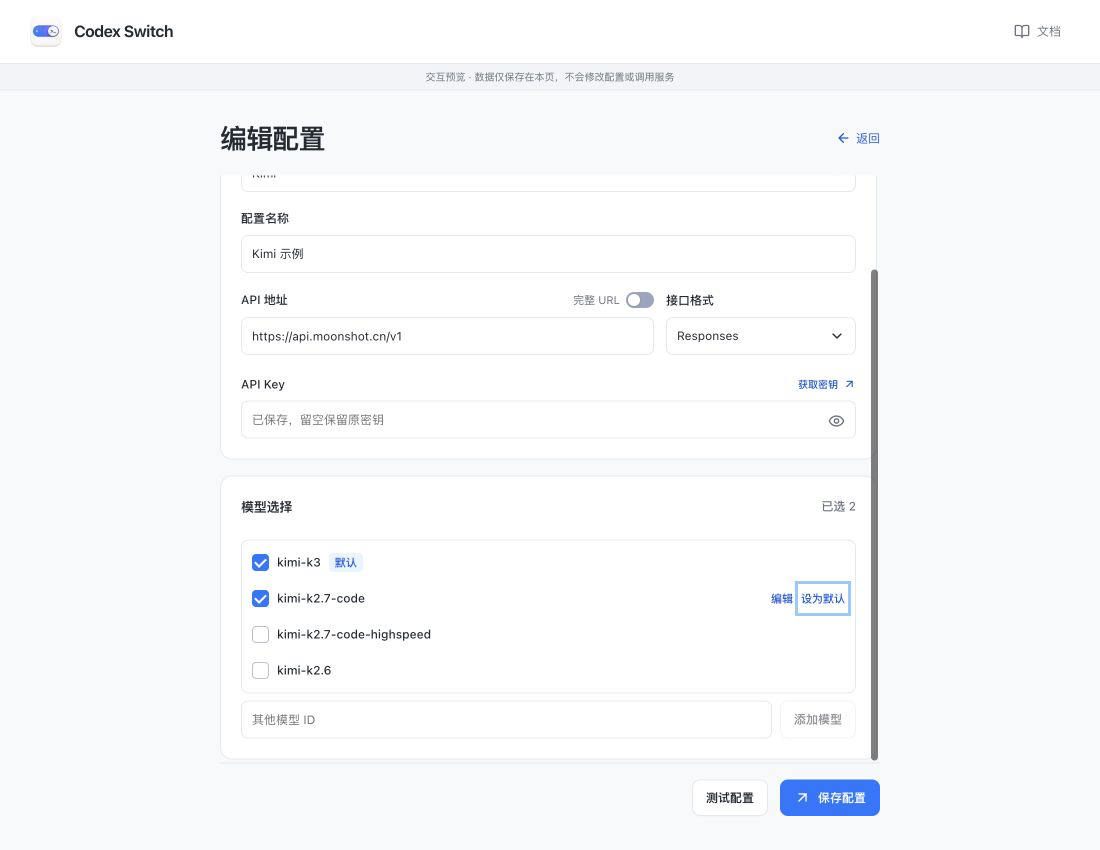
Screenshots show the Chinese app in browser preview with example data and simulated connection states. Click to enlarge.
Hover over a model row or focus it with Tab to reveal Edit and Set as default. The first selected model is the default unless you choose another. Removing it promotes the first remaining model.
Adjust capabilities
Section titled “Adjust capabilities”Click Edit beside a model. Changes apply only to that model in this configuration. Confirm the dialog, then click Save configuration.
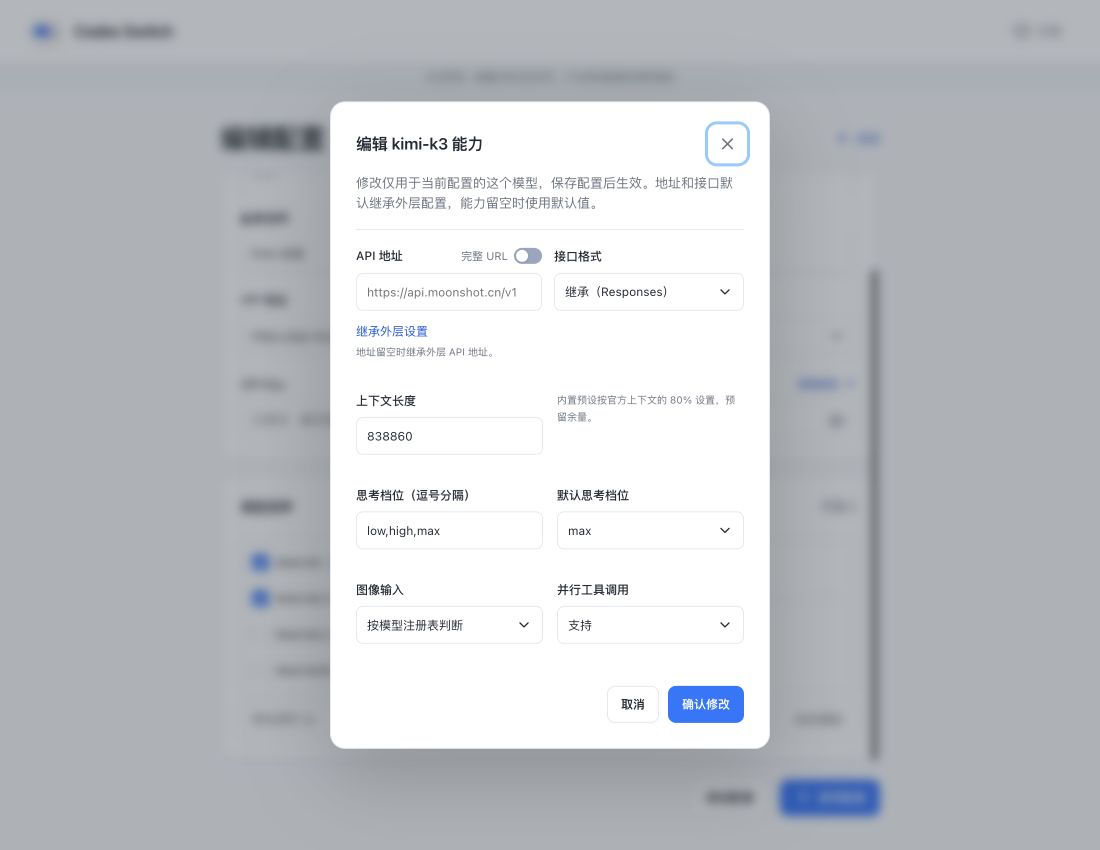
| Setting | When to change it |
|---|---|
| Context window | Built-in presets generally use 80% of model capacity to leave headroom. Adjust for custom models or different plan limits. A higher value does not increase actual capacity; Codex controls compaction timing. |
| Reasoning levels and default | Keep the model’s preset. For custom values, use commas and include only supported levels. The default must be in that list. |
| Image input | Declare support only if the model accepts images. Keep the default if unsure. |
| Parallel tool calls | Match the service’s capability or keep the default. |
| URL and API format | Override only when this model needs a different endpoint or format; otherwise inherit the configuration. |
Preset updates do not overwrite saved context values. Saving or enabling does not apply the 80% factor again. Reasoning defaults vary by model and plan.
Per-model URLs still use the configuration’s key. Re-enter it after changing the URL; create a separate configuration for a different key. See URL examples.