
Enable and disable
Enable to back up; disable to restore. Closing the window only minimizes the app to the tray—it does not disable the service.
Enable and use models
Section titled “Enable and use models”Select one or more configurations on the home screen, turn on the bottom Codex Switch toggle, then open Codex App from your operating system. Selecting configurations alone does not enable them.
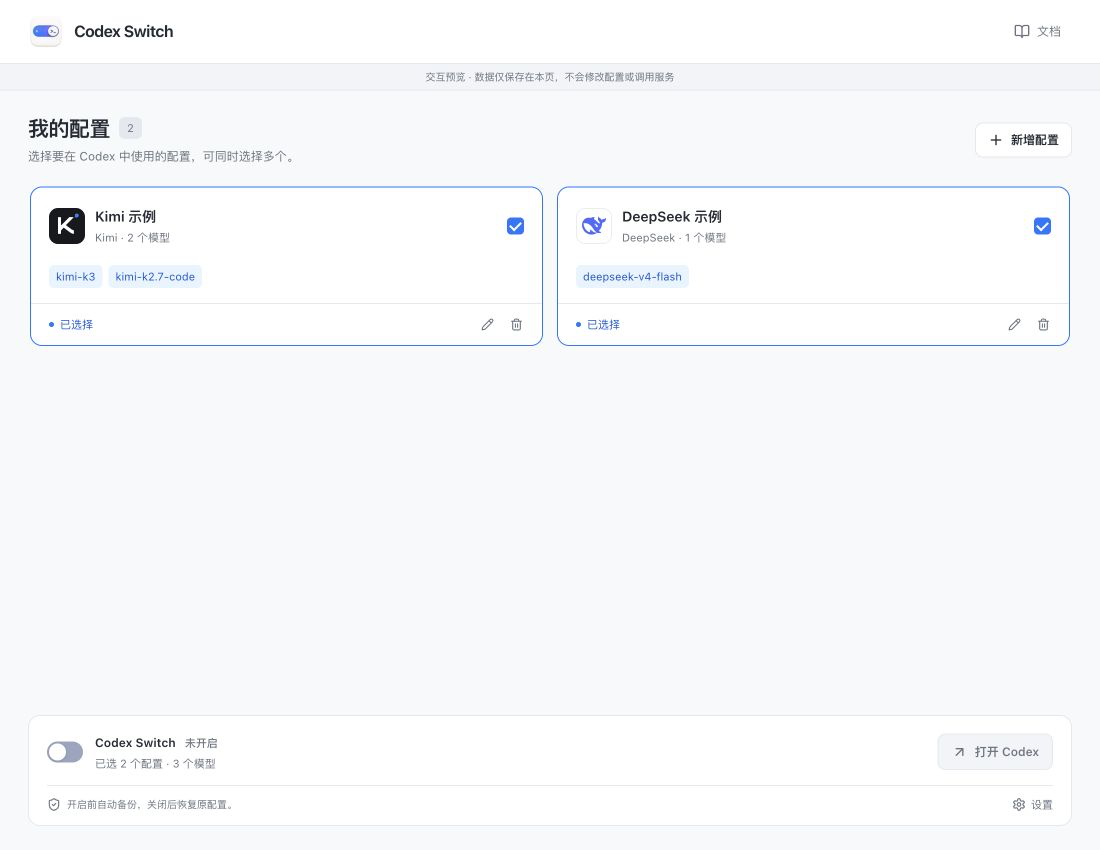
Screenshots show the Chinese app in browser preview with example data and simulated connection states. Click to enlarge.
If Codex is already running or its model list has not updated, finish your task before quitting and reopening it. Codex Switch does not restart Codex automatically.
Disable and restore
Section titled “Disable and restore”An overlay locks editing while enabled. Turn off its service switch to restore the settings from before this activation, without another confirmation. You can then edit configurations and settings.
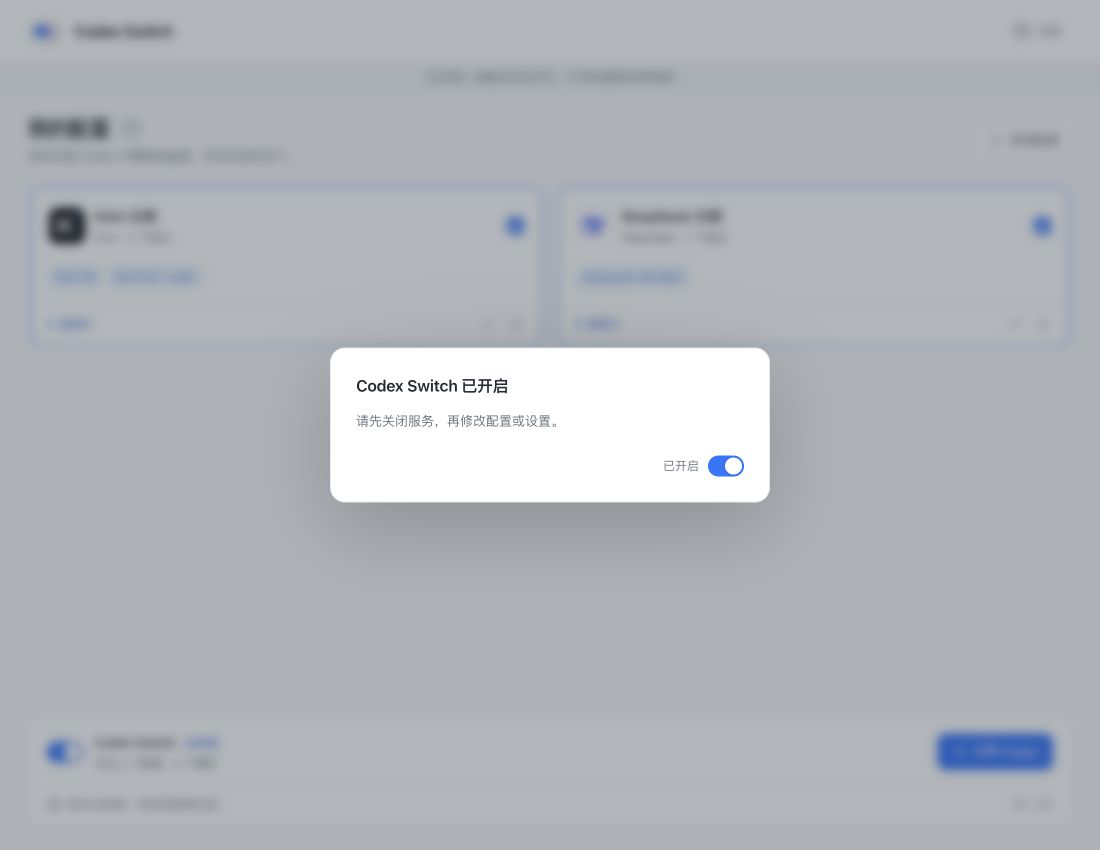
Codex login, session and history files stay unchanged. A running Codex may retain old settings until you quit and reopen it.
To change configurations: disable → edit or select → enable → reopen Codex. Subsequent requests from existing sessions also use the current configuration.
Tray shortcuts
Section titled “Tray shortcuts”| Action | Result |
|---|---|
| Select configurations (multiple) | Syncs with the home screen without enabling. On macOS, the menu stays open for further selections. Selection is locked while enabled. |
| Enable Codex Switch / Disable service | Applies selected configurations or restores the original settings. |
| Open panel | Shows the main window again. |
| Quit app | Fully exits. First quit Codex normally if it is using the connection. |
If something goes wrong
Section titled “If something goes wrong”- Unexpected exit: reopen Codex Switch and disable the service to restore settings, then enable again if needed.
- External configuration edits: the app saves a separate copy before restoring. If copying or restoration fails, it preserves the file and shows an error.
- Codex not found: after installing it, open Settings → Codex App and click Detect again.